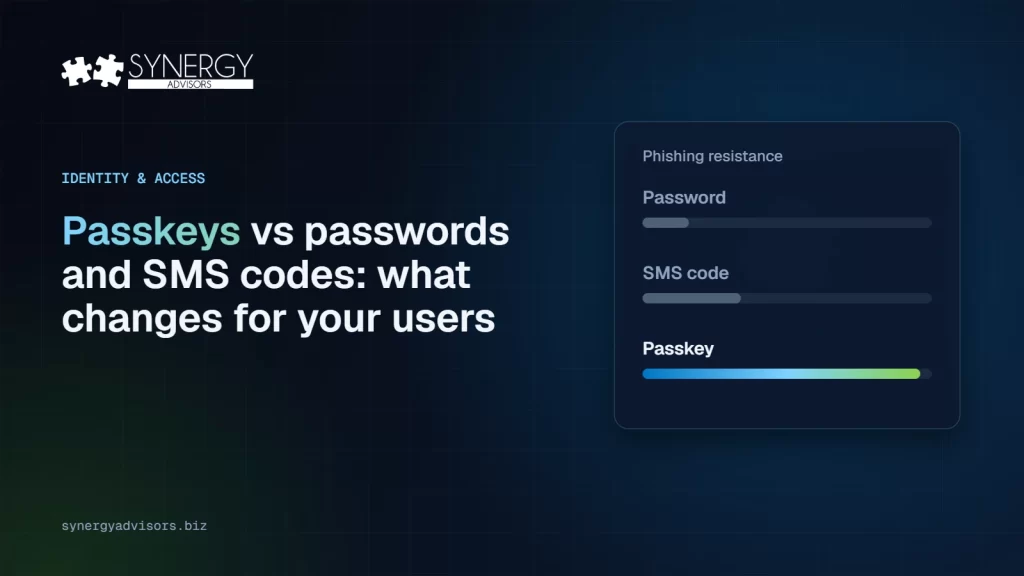

Short answer: a passkey replaces the password and the SMS code with a cryptographic key pair. The private key stays on the user’s device or in their credential manager and is unlocked with a fingerprint, face or PIN; Microsoft Entra ID only stores the public key. A passkey only answers the real sign-in domain and there is no secret to type or intercept, so it is phishing-resistant. Passwords, SMS codes and push approvals are not.
Why passwords and SMS codes are no longer enough
Passwords and one-time codes share the same weakness: they are secrets a person can be tricked into handing over. Modern phishing kits sit between the user and the real sign-in page (adversary-in-the-middle), relay the password and the SMS code in real time and keep the session token. SMS adds its own risks, such as SIM swapping and message interception, and push approvals can be abused with prompt bombing.
That is why Microsoft is retiring the SMS and voice it delivers for Microsoft Entra ID and is making passkeys the default. The dates and the migration plan are in How to migrate users from SMS and voice MFA to passkeys.
How a passkey sign-in works
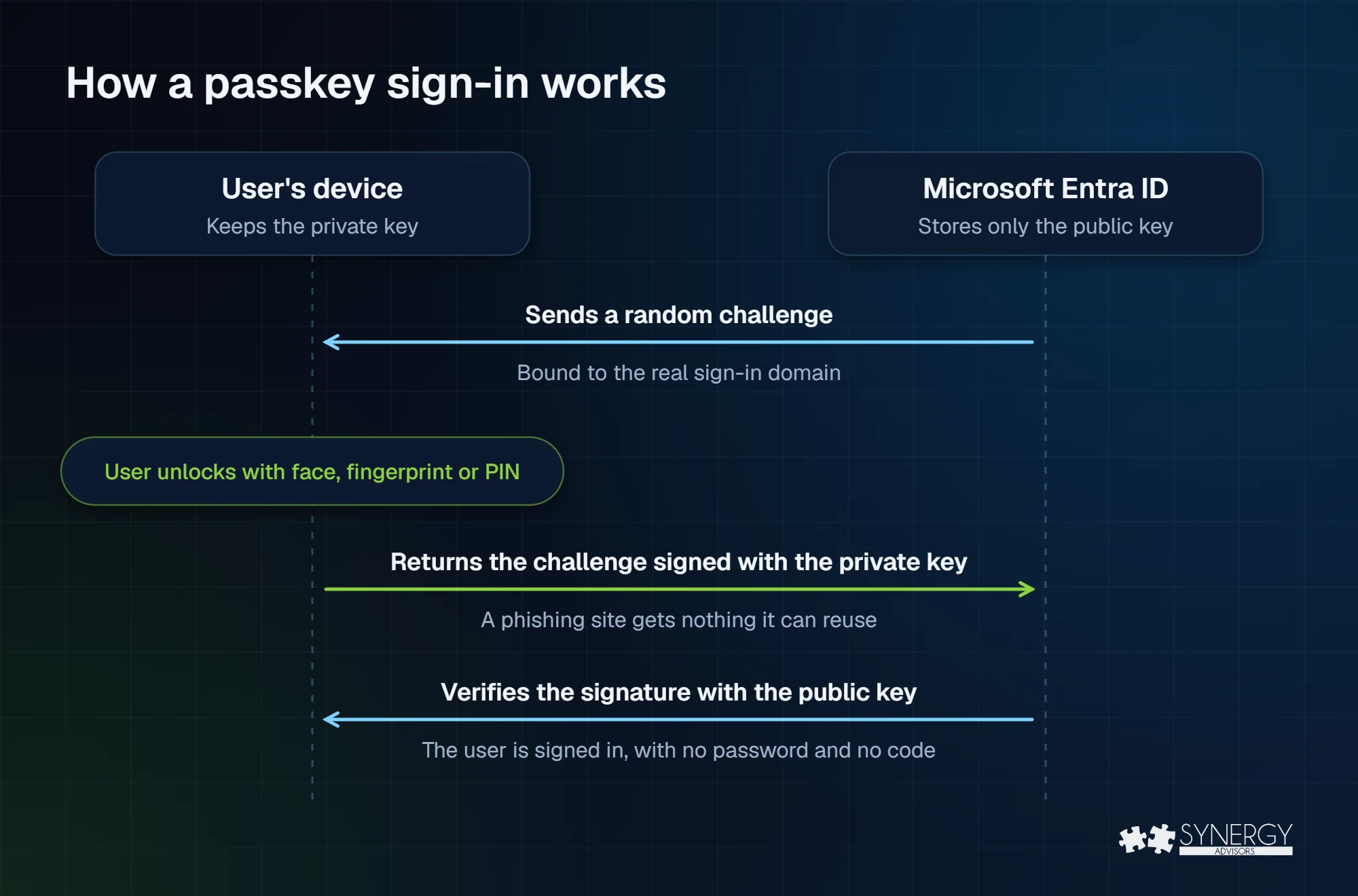
Passkeys are built on the FIDO2 and WebAuthn standards. When a user registers, the device creates a unique key pair for that account. At sign-in:
- Microsoft Entra ID sends a random challenge that is tied to the real sign-in domain.
- The user unlocks the passkey locally with face, fingerprint or PIN. The biometric is checked on the device and is never sent to Microsoft.
- The device signs the challenge with the private key and returns the signature.
- Microsoft Entra ID verifies it with the public key it stored at registration.
A look-alike domain gets nothing it can reuse: the passkey will not answer for it, and a stolen signature is useless for a new challenge. One gesture covers both factors, something you have (the key) and something you are or know (the unlock).
Passwords, SMS codes and passkeys side by side
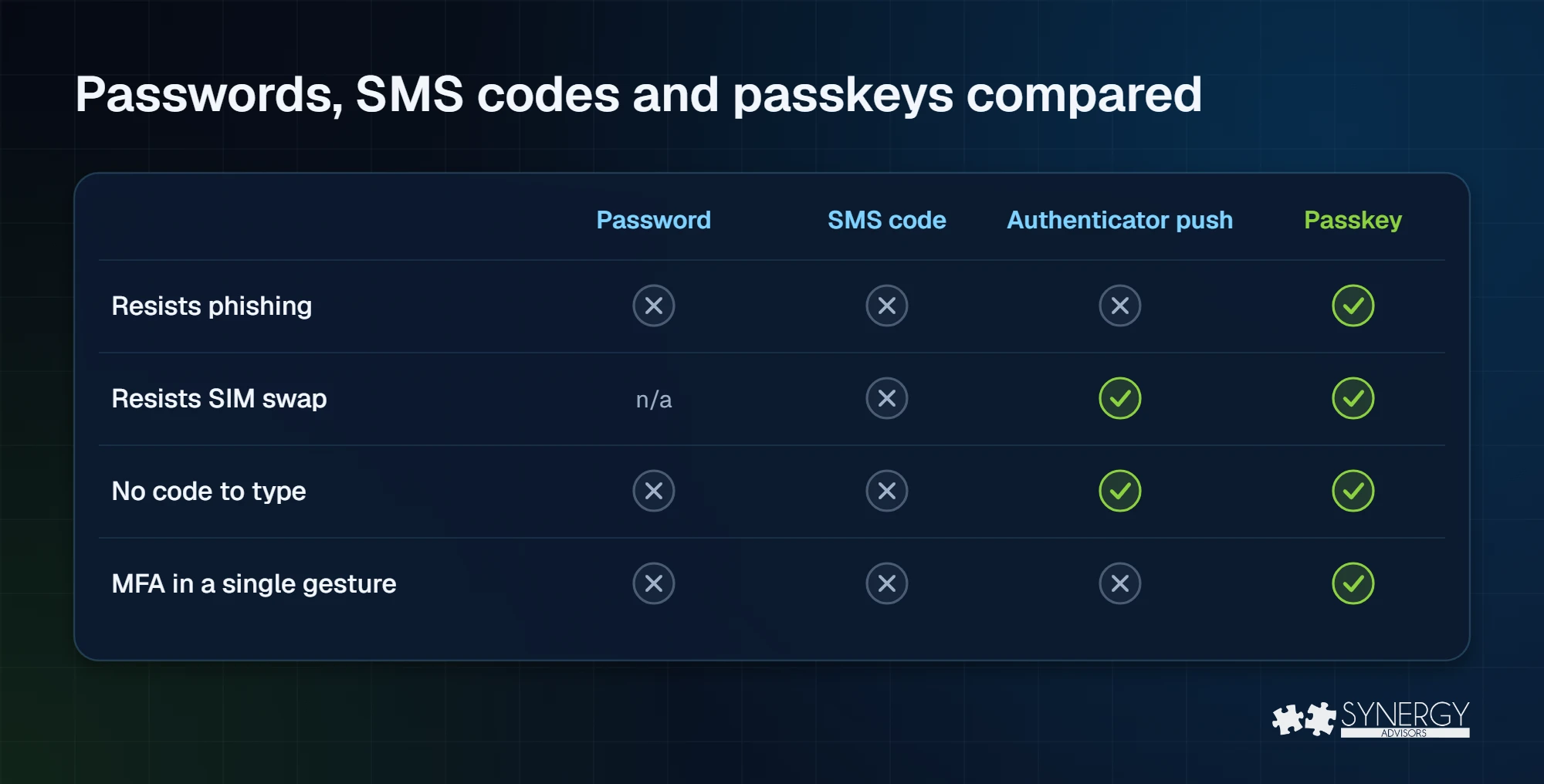
| Password | SMS or voice code | Passkey | |
|---|---|---|---|
| What the user does | Types a secret | Types a password and a code | Unlocks with face, fingerprint or PIN |
| What an attacker can steal | The password | The password and the code, in real time | Nothing reusable |
| Phishing-resistant MFA strength | No | No | Yes |
| After the 2027 retirement | Still needs a second factor | Only through a customer-managed provider | Default method |
Synced or device-bound passkeys?
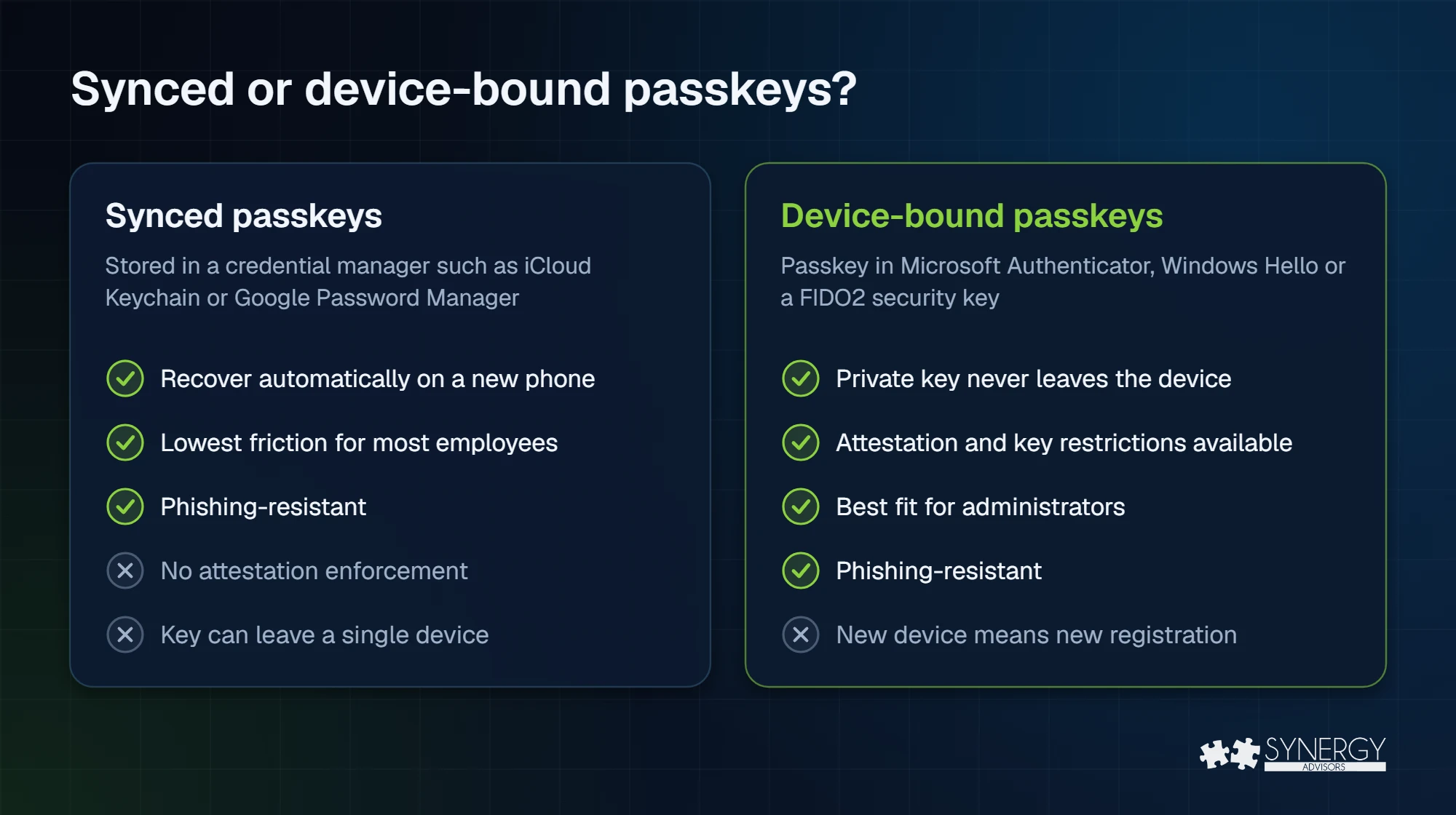
Synced passkeys live in a credential manager such as iCloud Keychain, Google Password Manager or another passkey provider and follow the user to a new phone. They remove most help desk calls for lost devices, which makes them the right default for the majority of employees. They do not support attestation, so you cannot restrict them to specific authenticator models.
Device-bound passkeys never leave the device that created them: a passkey in Microsoft Authenticator, a passkey on Windows or a FIDO2 security key. With attestation and key restrictions you can allow only approved models, which is what administrators and other privileged roles should use. The trade-off is that a new device means a new registration, usually with a Temporary Access Pass.
In Microsoft Entra ID you do not have to choose one for everybody: passkey profiles let you allow synced and device-bound passkeys for most users and device-bound only, with attestation, for administrators.
What changes for users
Registering a passkey
On a phone, the recommended path is Microsoft Authenticator: add the work account, choose to create a passkey, complete MFA once and enable Authenticator as a passkey provider in the phone settings. Users can also start from Security info on a computer and finish on the phone. Passkeys in Authenticator require iOS 17 or later and Android 14 or later, with Android 15 recommended.
Signing in every day
- On the phone itself: choose the passkey and unlock it. No code, no app switching.
- On a computer: use Windows Hello on a managed PC, a security key, or the phone through a QR code. Cross-device sign-in needs internet and Bluetooth on both devices.
- On a new phone: synced passkeys come back with the credential manager; device-bound passkeys are registered again, usually with a Temporary Access Pass from the help desk.
What changes for IT
- Enable Passkey (FIDO2) and design passkey profiles per persona.
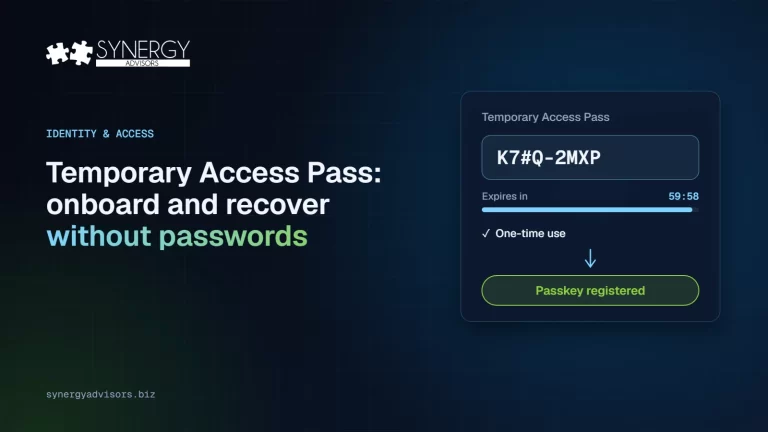
- Run a registration campaign and set up Temporary Access Pass for onboarding and recovery.
- Allow the cross-device endpoints on the network without inspection and check OS and Authenticator versions.
- Update help desk scripts for identity verification before issuing a Temporary Access Pass.
- Require the Phishing-resistant MFA authentication strength with Conditional Access, starting with administrators. See how to require phishing-resistant MFA.
Three myths worth clearing up
- “Biometrics are sent to Microsoft.” They are not. The face or fingerprint only unlocks the key on the device.
- “Authenticator push is phishing-resistant.” It is not. A passkey stored in Microsoft Authenticator is; a push approval is not.
- “Passkeys are a consumer feature.” Synced and device-bound passkeys are generally available for work accounts in Microsoft Entra ID.
How Synergy Advisors helps
Our security experts help you choose the right passkey types per persona, prepare devices and the help desk, and move users off SMS without disruption. Explore our Passwordless offering or check your starting point with the readiness checklist.
Sources
- Passkeys by default and retirement of Microsoft-provided SMS and voice authentication Microsoft Learn
- Enable passkeys (FIDO2) in Microsoft Entra ID Microsoft Learn
- Passkey (FIDO2) support in Microsoft Entra ID Microsoft Learn
- Register a passkey in Microsoft Authenticator Microsoft Learn
- Configure a Temporary Access Pass Microsoft Learn
- Conditional Access authentication strengths Microsoft Learn
Frequently asked questions
Is a passkey the same as MFA?
A passkey satisfies MFA on its own: possession of the private key plus a local biometric or PIN. In Conditional Access it counts toward the Phishing-resistant MFA strength.
Are biometrics sent to Microsoft?
No. The biometric is checked on the device and only unlocks the private key. Microsoft Entra ID receives a signature and stores only the public key.
What happens if a user loses their phone?
Synced passkeys return when the user signs in to their credential manager on the new phone. Device-bound passkeys are registered again, usually with a Temporary Access Pass issued by the help desk.
Do passkeys work on Windows, Mac, iOS and Android?
Yes. Microsoft Entra ID supports passkeys on Windows, macOS, iOS, Android, ChromeOS and Linux in current browsers, with some platform limitations for security keys over NFC or Bluetooth.