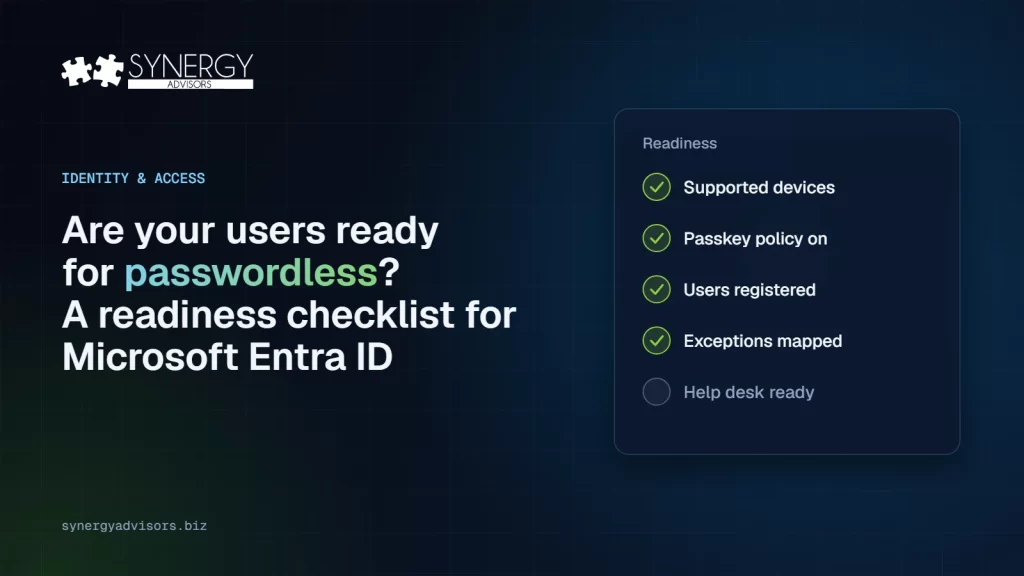

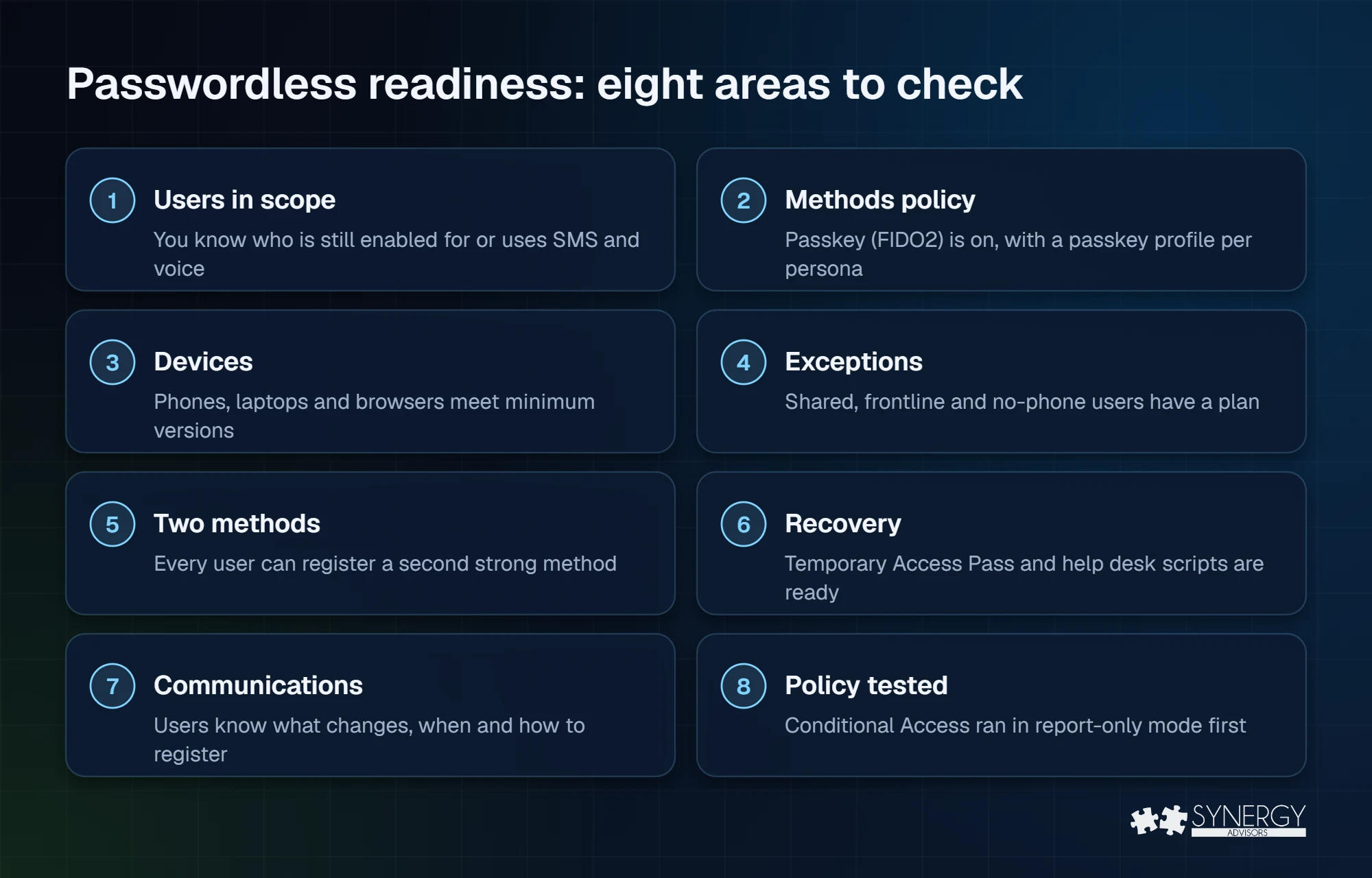
Short answer: you are ready for passwordless in Microsoft Entra ID when you can answer yes to eight questions: you know who still depends on SMS or voice, passkeys are enabled with a profile per persona, devices meet minimum versions, exceptions have a plan, every user can hold a second strong method, recovery is defined, communications are scheduled and a phishing-resistant Conditional Access policy has already run in report-only mode.
The eight areas at a glance
The checklist
1. Users in scope
Check: who is enabled for SMS or voice, who actually uses it and who has no other method. How: the SMS and voice usage analyzer script and Entra ID > Authentication methods > Activity. Ready when: you have a named list of users whose only method is SMS or voice and a target date for each group.
2. Authentication methods policy
Check: Passkey (FIDO2) is enabled and self-service setup is allowed. How: Entra ID > Authentication methods > Policies > Passkey (FIDO2). Ready when: passkey profiles exist per persona, for example synced and device-bound for employees and device-bound with attestation for administrators.
3. Devices and versions
Check: phones run iOS 17+ or Android 14+ (15 recommended) and a current Microsoft Authenticator; managed PCs support Windows Hello for Business; browsers are current. How: your device management inventory. Ready when: you know the percentage of users on supported devices and have a plan for the rest.
4. Exceptions
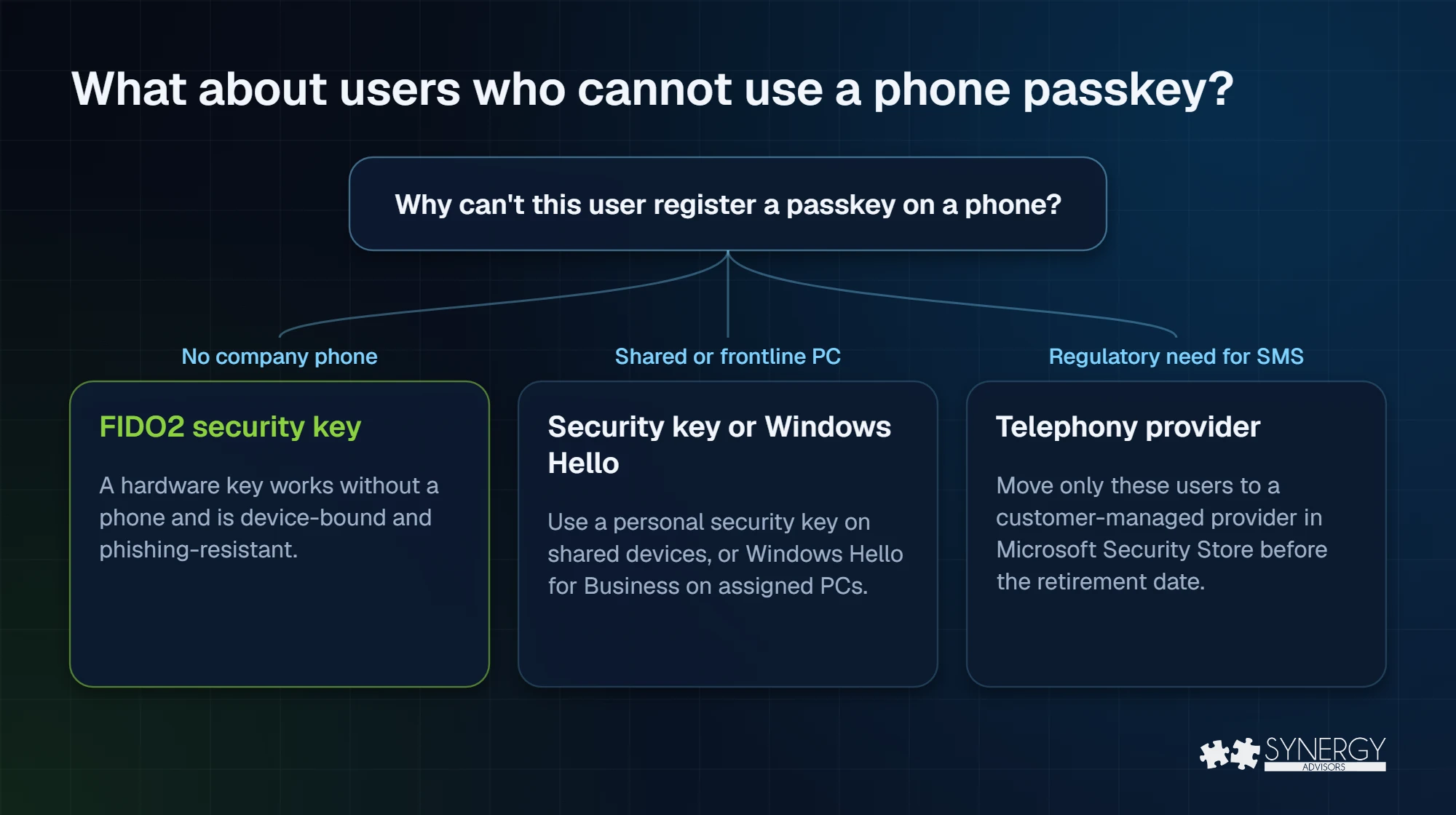
Check: frontline staff, shared workstations, users without a company phone and anyone with a regulatory need for SMS. Ready when: each exception has an alternative: FIDO2 security keys, Windows Hello for Business or, only where justified, a customer-managed telephony provider.
5. Two strong methods per user
Check: users can register a second phishing-resistant or strong method, for example a passkey on the phone plus Windows Hello on the PC. Ready when: losing one device does not mean losing access.
6. Recovery
Check: Temporary Access Pass is enabled with sensible lifetimes (the policy allows 10 minutes to 30 days, default one hour) and who can issue it. Authentication Administrators can issue it for members; Privileged Authentication Administrators also for administrators. Ready when: the help desk has an identity-verification script and knows that a one-time pass must be used to register within 10 minutes.
7. Communications
Check: messages for each audience, adapted from Microsoft’s templates, with dates and a short how-to. Ready when: announcement, reminder and day-of messages are scheduled, and managers know what to say.
8. Conditional Access tested
Check: a policy that requires the Phishing-resistant MFA authentication strength has run in report-only mode. How: sign-in logs, Report-only tab. Ready when: you know who would fail today and why, and emergency access accounts are excluded. Details in how to require phishing-resistant MFA.
The dates that set your deadline
| Date | What happens | What it means for readiness |
|---|---|---|
| September 1, 2026 | Passkeys enabled by default for SMS and voice users; registration campaign moves to Microsoft managed | Users are already being nudged. Make sure your policy and communications are ready. |
| October 30, 2026 | Customer-managed telephony providers available in Microsoft Security Store | Decide which users, if any, truly need SMS or voice. |
| February 1, 2027 | Microsoft-provided SMS and voice retired for most users | Users with only SMS or voice must register a passkey to continue. |
| July 1, 2027 | Retirement extends to Global Administrators and external users | Administrators and guests need their own plan. |
Where organizations usually get stuck
- Enforcing before registration. Passkeys cannot be registered from the Conditional Access interrupt, so users without one are blocked.
- No plan for shared devices. A phone-based passkey does not fit a shared counter PC.
- Network inspection. TLS inspection on the cross-device endpoints breaks QR sign-in.
- Guests forgotten. External users can satisfy phishing-resistant MFA only in their home tenant, and only if you trust their MFA in cross-tenant access settings.
Score yourself
- 7 or 8 yes: you are ready to enforce in waves. Start with administrators.
- 4 to 6 yes: fix registration and exceptions first; you still have time before February 1, 2027.
- 3 or fewer: start with discovery this month. Without a plan, the blocking prompt will become your migration plan.
How Synergy Advisors helps
Our security experts can run this assessment with you, build the plan and execute it. Learn more about our Passwordless offering and the full migration plan from SMS to passkeys.
Sources
- Passkeys by default and retirement of Microsoft-provided SMS and voice authentication Microsoft Learn
- Microsoft Entra SMS and voice usage analyzer (GitHub) GitHub
- Enable passkeys (FIDO2) in Microsoft Entra ID Microsoft Learn
- Register a passkey in Microsoft Authenticator Microsoft Learn
- Configure a Temporary Access Pass Microsoft Learn
- Run a registration campaign to set up passkeys or Microsoft Authenticator Microsoft Learn
- How Conditional Access authentication strengths work Microsoft Learn
- Authentication strengths for external users Microsoft Learn
Frequently asked questions
How do I know which users still use SMS or voice?
Run Microsoft’s SMS and voice usage analyzer script and review the Authentication methods activity report in the Microsoft Entra admin center. Any non-zero result means you are in scope.
Do we need FIDO2 security keys for everyone?
No. Most employees can use passkeys on their phone or Windows Hello for Business. Security keys are best for administrators, shared devices and users without a company phone.
What is a Temporary Access Pass?
A time-limited passcode issued by an administrator so a user can sign in and register a passkey without any existing method. It can be one-time use and lasts from 10 minutes to 30 days.
Can we keep SMS for a few users?
Yes, through a customer-managed telephony provider in Microsoft Security Store. Keep the list short and documented.