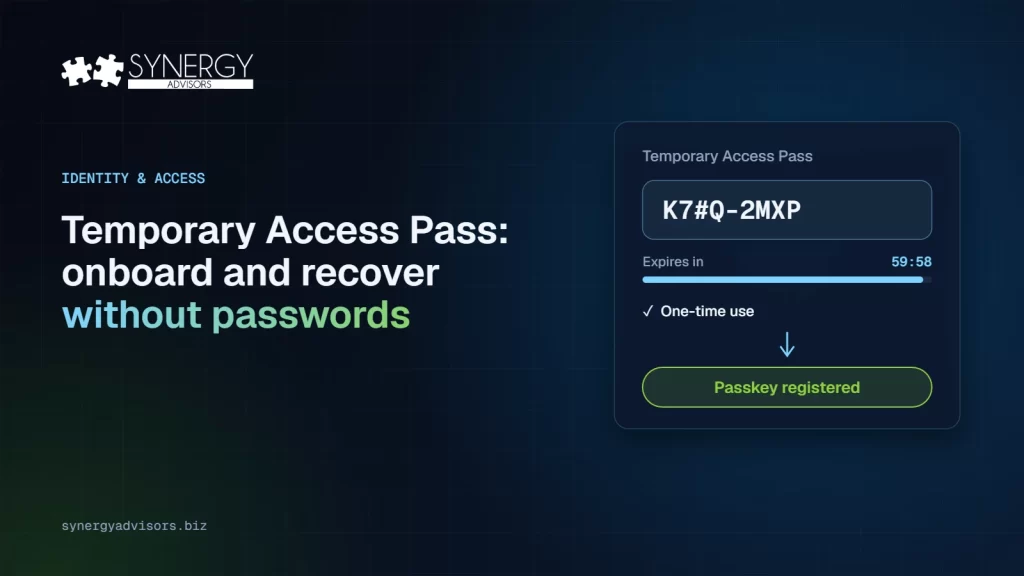

A Temporary Access Pass (TAP) is a time-limited passcode in Microsoft Entra ID that lets a user sign in once, or for a short period, to set up a passkey or another strong method. It is the bridge that makes passwordless work in practice: new employees use it to register their first passkey, and people who lose their phone use it to get back in. Configured badly, it becomes a password with extra steps.
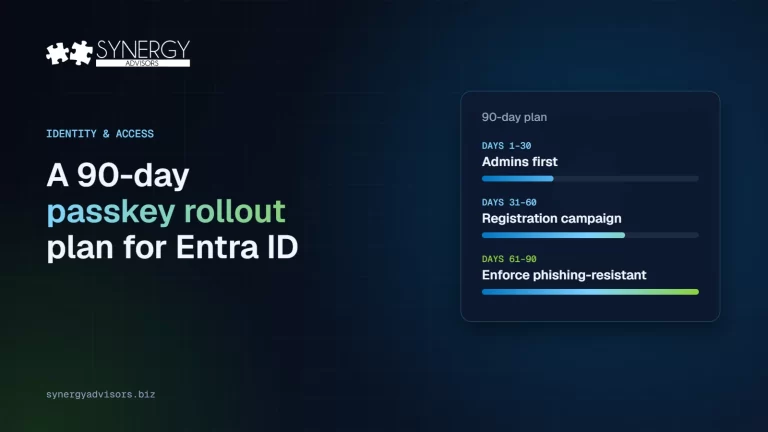
This guide covers what TAP is and is not, the settings that matter, the three scenarios where it earns its place, and the mistakes our identity experts see most often. Read this guide as a companion to our 90-day passkey rollout plan.
What a Temporary Access Pass is and is not
A TAP is meant to bootstrap passwordless methods such as passkeys and to help users recover when they lose or forget their strong method. A few points are easy to miss:
- It does not replace the password. If the user has a password, it still works.
- It counts as multi-factor authentication, but not as phishing-resistant. In Conditional Access authentication strengths, TAP is part of the MFA strength only, not the passwordless or phishing-resistant strengths.
- It is not a self-service recovery method. In Microsoft’s authentication methods table, TAP supports sign-in and MFA, but not self-service password reset.
- One per user. Each user can have only one TAP at a time. Creating a new one replaces the old one.
The settings that matter
TAP is configured in the Authentication methods policy. These are Microsoft’s defaults and limits:
| Setting | Default | Range | What our experts recommend |
|---|---|---|---|
| Minimum lifetime | 1 hour | 10 minutes to 30 days | Keep it short |
| Maximum lifetime | 8 hours | 10 minutes to 30 days | One working day at most for most users |
| Default lifetime | 1 hour | 10 minutes to 30 days | 1 hour for recovery |
| One-time use | No | Yes / No | Yes for recovery; consider multi-use only for device setup |
| Length | 8 characters | 8 to 48 characters | Keep the default or longer |
Two details change how you design the process. First, the one-time setting applies to the whole tenant: if you turn it on, every TAP is one-time use. Second, only users included in the TAP policy can sign in with one, even if an administrator creates a TAP for them.
Who can issue a TAP
| Role | What it can do |
|---|---|
| Authentication Policy Administrator | Turn TAP on, choose which users and groups are included, and edit the policy |
| Privileged Authentication Administrator | Create, delete, and view TAPs for administrators and members |
| Authentication Administrator | Create, delete, and view TAPs for members |
| Global Reader | View TAP details, but not the code |
The code is shown only once, when the TAP is created. Your help desk process should assume that.
Three scenarios where TAP earns its place
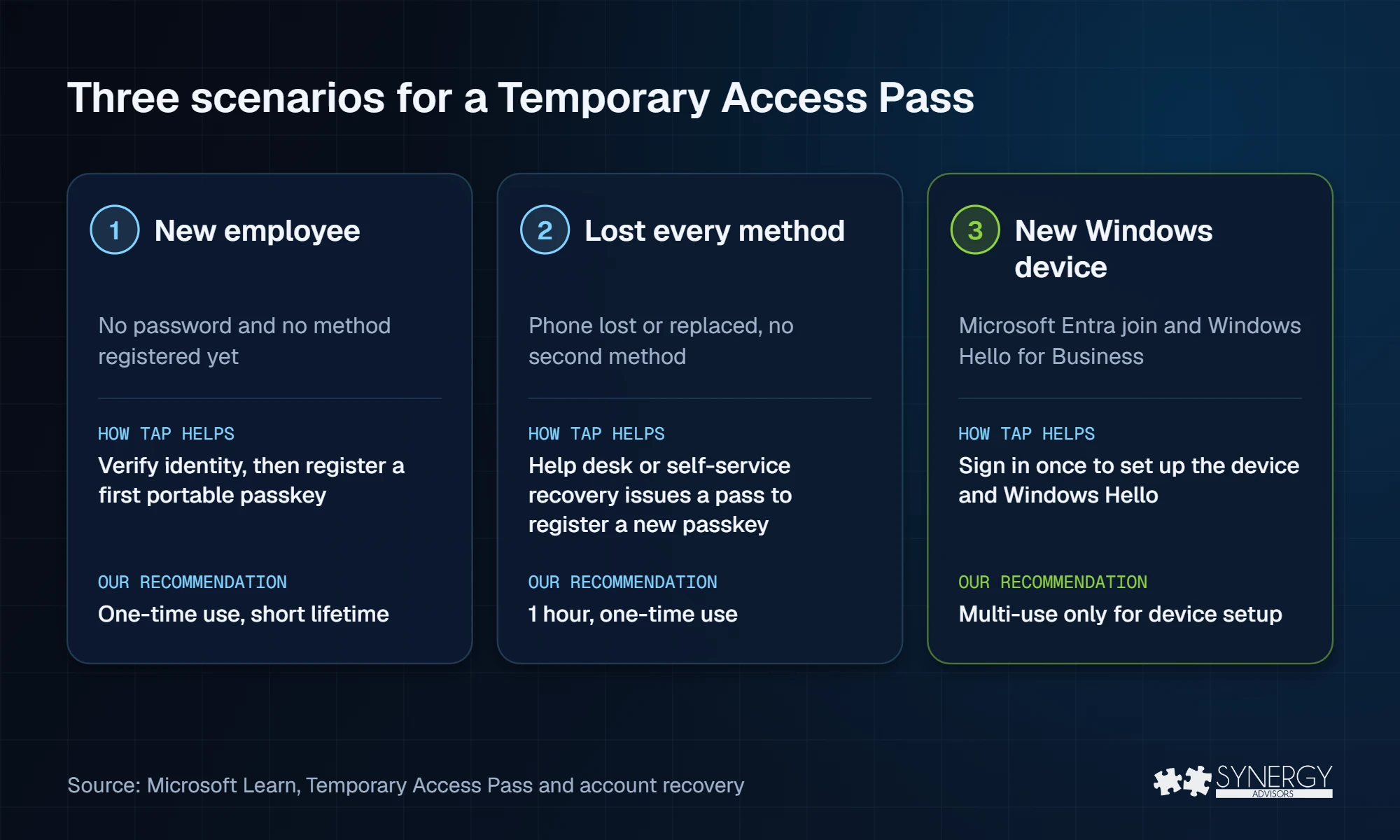
1. Onboarding a new employee without a password
Microsoft’s passwordless deployment guide recommends verifying the new hire’s identity, then giving them a TAP to register their first portable credential. For high assurance, identity can be verified with Microsoft Entra Verified ID and Face Check. The user can sign in to Microsoft Authenticator directly with the TAP on iOS or Android and create a passkey there.
2. Recovering a user who lost every method
When someone loses their only strong method, the help desk verifies their identity and issues a one-time TAP so the user can register a new passkey. Microsoft also documents a self-service account recovery flow: the user verifies their identity with a document check and Face Check, receives a TAP and must register a new method before it expires.
3. Setting up a Windows device
A TAP can be used to join a device to Microsoft Entra ID and register Windows Hello for Business. On devices that are already joined, the user must first sign in with another method. If Windows web sign-in is enabled, a TAP can sign the user in to the device, but Microsoft says this is intended only for initial setup or recovery.
Mistakes we see often
- Long, multi-use passes “to be safe”. A TAP valid for days is a password by another name. Keep lifetimes short and one-time use the norm.
- Issuing a TAP without verifying identity. The TAP is only as strong as the check before it. Document the verification steps and train the help desk.
- Forgetting that sessions outlive the pass. When a TAP expires, sessions already established keep working. Use Conditional Access sign-in frequency to limit them.
- Users caught by the 10-minute window. With a one-time TAP, passwordless registration must be completed within 10 minutes of sign-in. Tell users before they start.
- Registration policies that block passkeys. Users in scope of the SSPR registration policy or the ID Protection MFA registration policy are sent to a registration mode that currently does not support passkey registration. Check these policies before the campaign.
- Expecting it to work everywhere. TAP does not work with the NPS extension or the AD FS adapter, and it cannot be added to external guest users.
How our experts help
Our identity experts design the TAP process together with the rest of the passwordless rollout: who can issue a pass, how identity is verified, which lifetimes apply to each scenario and how the help desk handles recovery. Our Secure Access solutions cover the rest of the journey:
- Secure Access E-ntelligence shows every method each user has registered and actually uses, so you know who will need a TAP to move to passkeys.
- The Secure Access Admin Agent tells administrators, in plain language, who still depends on SMS or voice and where to start.
- The Secure Access User Agent and Micro-Visor Passwordless guide each employee to register a passkey inside Microsoft Teams.
Frequently asked questions
Does a Temporary Access Pass replace the password?
No. A TAP is an extra way to sign in for a limited time. If the user has a password, it still works until you remove it.
Can a TAP meet a phishing-resistant Conditional Access policy?
No. TAP is included in the MFA authentication strength, but not in the passwordless or phishing-resistant strengths.
How long should a TAP last?
Microsoft’s default is one hour, with a range from 10 minutes to 30 days. For recovery, our experts recommend one hour and one-time use.
Can guests get a Temporary Access Pass?
Only internal guests. A TAP cannot be added to external guest users; they use the methods from their home tenant.
Next step
Our identity experts can review your TAP settings and recovery process as part of a passwordless assessment. Request your assessment or join the Identity Protection Accelerator webinar on November 4.
Sources
- Configure Temporary Access Pass Microsoft Learn
- Conditional Access authentication strengths Microsoft Learn
- Authentication methods in Microsoft Entra ID Microsoft Learn
- Deploy phishing-resistant passwordless authentication Microsoft Learn
- Account recovery for users Microsoft Learn